






Documentation / Content
Translations › Themes & plugins is for texts your theme and plugins show visitors that are not part of a page: a footer text, a cookie notice, a button, a tracking code.
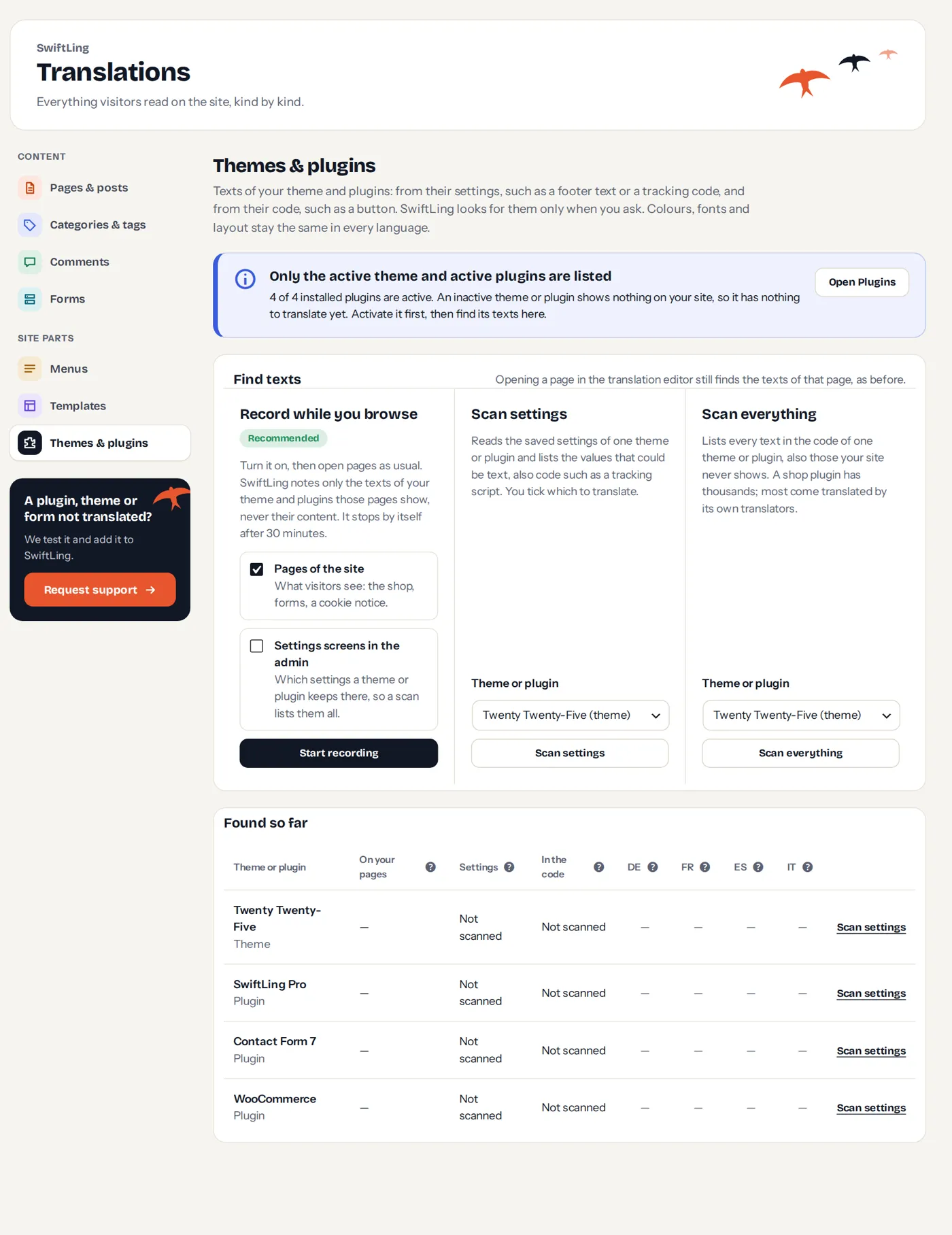
Only the active theme and plugins are listed. Colours, fonts and layout stay the same in every language.
How SwiftLing finds the texts
SwiftLing looks only when you ask. There are three ways:
| Way | What it does |
|---|---|
| Record while you browse (recommended) | Turn it on, then open pages of the site and the settings of your theme and plugins. SwiftLing notes only the texts of themes and plugins those pages show, never page content. It stops by itself after 30 minutes. |
| Scan settings | Reads the saved settings of one theme or plugin and lists the values that could be text. You tick which to translate. |
| Scan everything | Lists every text in the code of one theme or plugin, also those your site never shows. A shop plugin has thousands; most come translated already. |
What the table shows
For each theme or plugin: texts found on your pages, settings chosen, texts in the code, and how many of them have a translation (yours, or one its own translators made).
Choosing settings
After Scan settings, tick the ones visitors read. Values you leave unticked stay the same in every language. They are grouped as:
- Shown on your pages: visitors read these.
- Code: such as a tracking script; tick it when another language needs other code, for example another analytics property.
- Images and links: tick one when a language should show another image or link.
- Maybe text: words no page showed so far.
- Look like settings: a single word or a choice from a list. A theme compares such a value as it is, so translating it would break the setting in that language.
Press Save and translate to open the editor.
Plugin or theme not translated?
If a text of a theme, plugin or form still does not translate, press Request support (the dark box at the bottom of the SwiftLing menu). See Support and plugin requests.