






Documentation / Getting started
From nothing to a translated page in six steps.
1. Choose the languages
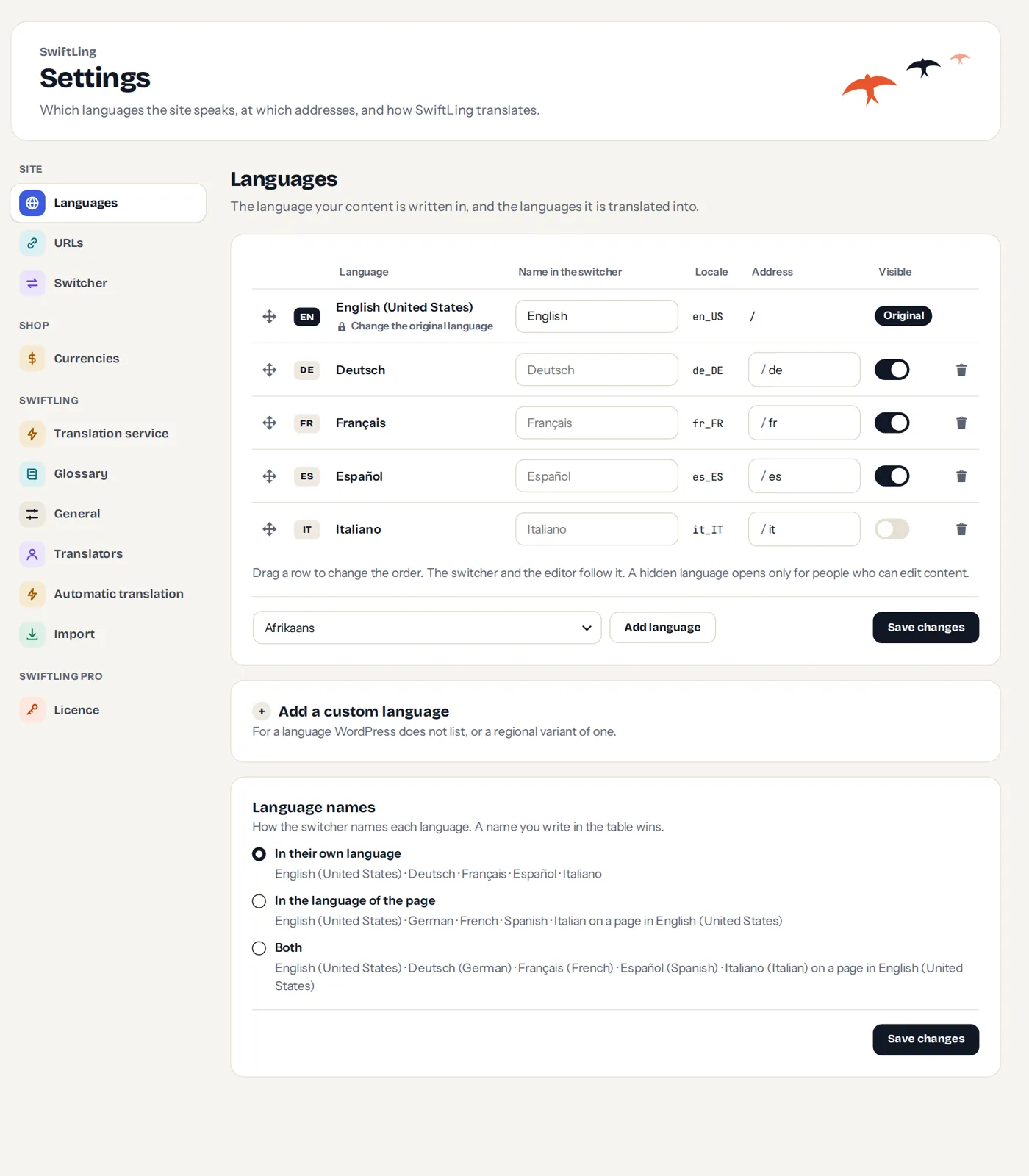
The first setup asks which language your content is written in, and which languages it should be translated into. Add as many as you like; you can change it later on Settings › Languages.
2. Choose how addresses look
On Settings › URLs, choose how the address of each language reads: a folder (/de/), a parameter (?lang=de), a subdomain, or a domain of its own. A folder is the simplest and works everywhere. See Addresses.
3. Translate a page
Open Translations › Pages & posts and choose a page, or press Edit translation in the toolbar while you look at the page. The translation editor shows each text beside its original.
4. Or let a machine start
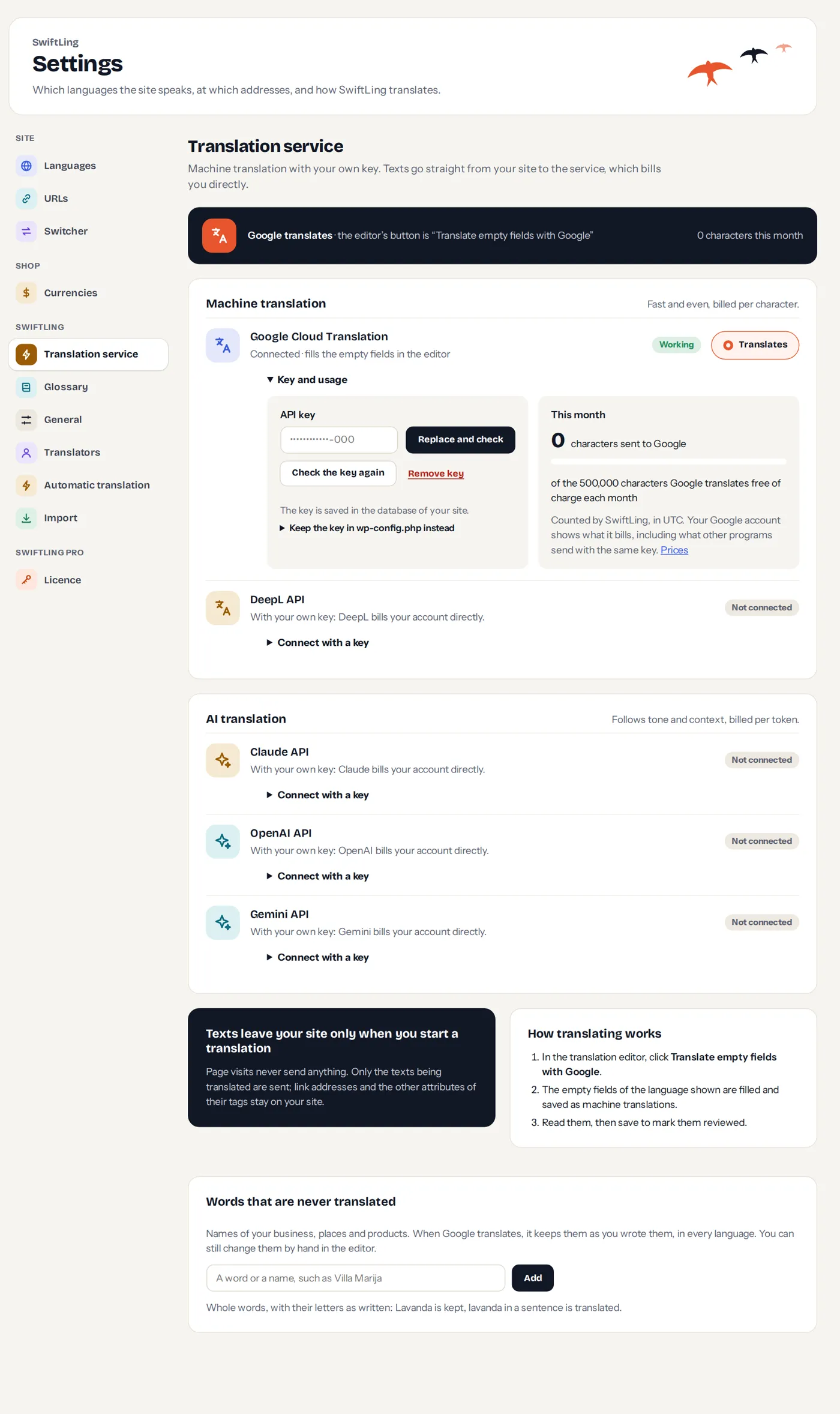
If you have a Google Cloud Translation key, add it on Settings › Translation service. In the editor, press Translate empty fields to fill the empty texts, then read them and press Save and mark reviewed. To do a whole language at once, use Translate everything.
5. Put the switcher where visitors find it
On Settings › Switcher, choose the places: in a menu, at the end of every page, or as a block, widget or shortcode. See Language switcher.
6. Check the site
Open your site in another language. The page shows the translated texts, and the original for every text you have not translated yet.



Tip. A language you are not ready to show can be hidden: only people who can edit content see it, so you can test it.