

Documentation / Languages and addresses
Settings › Languages is where you choose the language your content is written in, and the languages it is translated into.
Adding a language
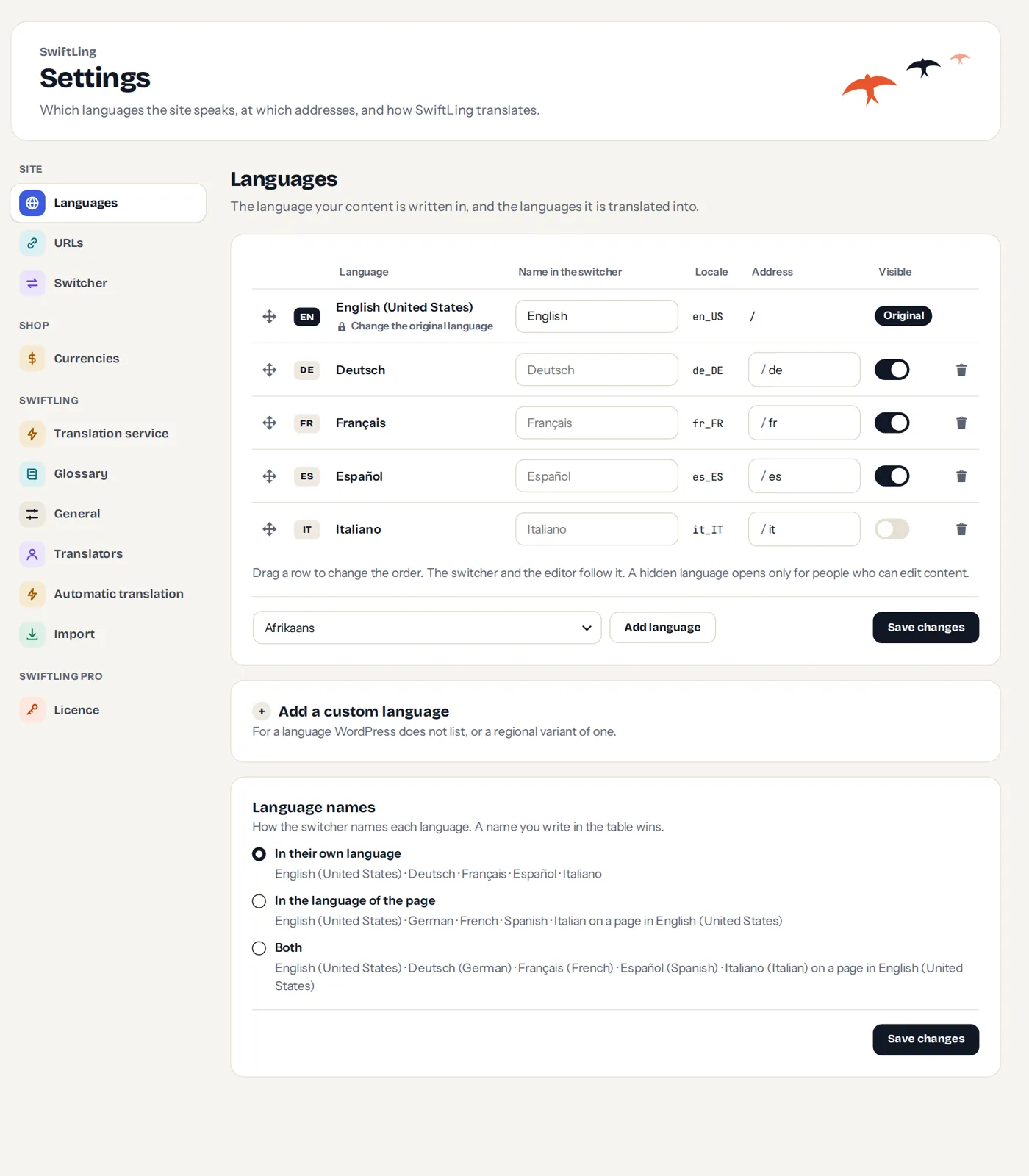
- Choose it from Language to add, and press Add language.
- It appears in the table. Its address is set from the language code (for example
de). - When its WordPress translation is not yet installed, SwiftLing asks WordPress to install it, as the Site Language setting of WordPress does. This happens only when an administrator who may install languages saves the languages.
Each row has:
| Column | What it is |
|---|---|
| Order | Drag a row to change the order. The switcher and the editor follow it. |
| Code | The code of the language, such as de. |
| Language | The language’s name. |
| Flag | The flag shown for the language: the country of its locale (Automatic), another country, no flag, or an image of your own. The same choice is on Settings › Switcher, step 3. Some languages, such as Arabic, have no country of their own and show no flag until you choose one. |
| Name in the switcher | What the switcher shows. Change it if you like. |
| Locale | The WordPress locale, such as de_DE. A formal locale, such as de_DE_formal, asks DeepL to address people formally. |
| Address | The part of the address that names the language, such as de. |
| Visible | Switch a language off to hide it from visitors until it is ready. A hidden language opens only for people who can edit content. |
A custom language
For a language WordPress does not list, or a regional variant of one, use Add a custom language: give it a name, a language code such as cnr or es_MX (at most 12 characters), and the language WordPress texts and dates should come from.
Tick Right to left for languages such as Arabic or Hebrew.
The original language
Your content’s language is the original. It is the first row and the one machine translation translates from. To choose another, use Change the original language.
Names of languages
Each language can be named in its own language (Deutsch), in the language of the page (German), or both. Choose it under Language names on this screen. You can also write how a language is called on a page in another language, such as German on an English page; an empty field shows the automatic name. Names in the language of the page need the PHP intl extension, which your host can switch on.
Removing a language
Press Remove in the row. The language leaves the site, but its translations are kept: it moves to Languages no longer on the site, and Add again brings it back with everything.
To delete the translations of a language for good, use Delete… there. It asks you to tick that the translations cannot be brought back, and shows a last check. Only separate copies can still be restored from the Trash; the texts cannot. Adding the language again later starts from nothing, and machine translations are paid for again.
What WordPress shows in each language
WordPress, the theme and plugins show their own texts translated in the language, with dates in the language. Your translations still come first. If WordPress’s own translations for a language cannot be downloaded, texts of WordPress, the theme and plugins stay in English there until you translate them.